How to Clear Cache on iPhone (Safari and Apps, Step by Step)
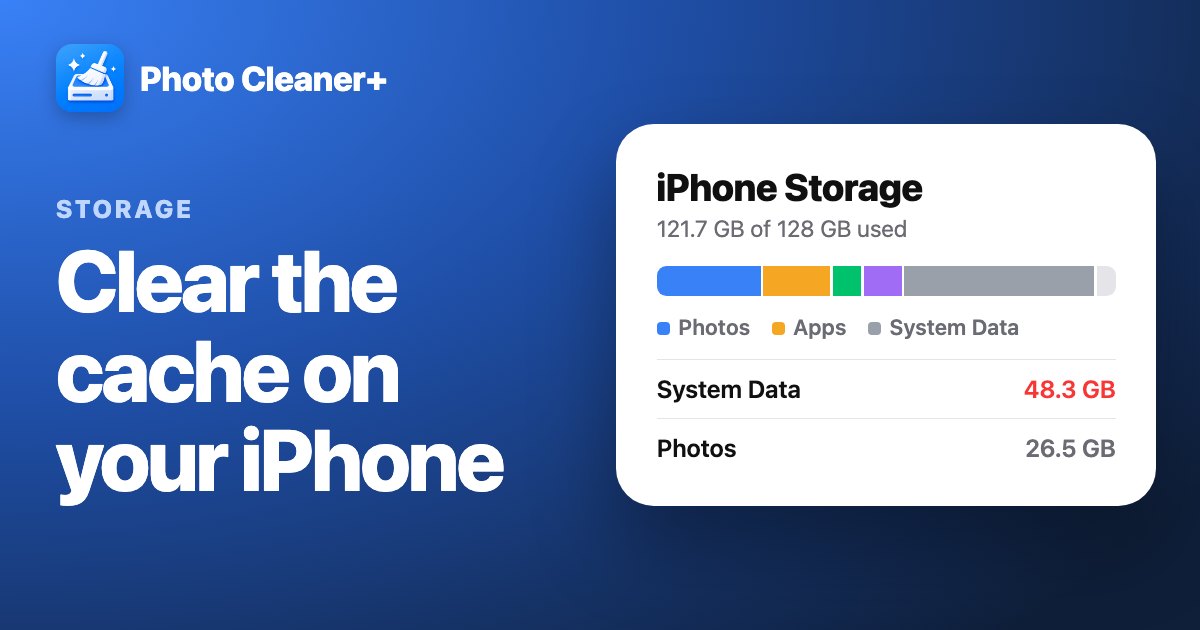
Websites load slowly or look broken, an app keeps showing old content, or you've read that clearing the cache frees up space. On a computer there's usually one button for this. On an iPhone there isn't.
Here's what you can clear, where to find it, and what to expect afterwards.
For Safari, go to Settings → Apps → Safari, tap Clear History and Website Data, choose a timeframe and tap Clear History. For other apps there's no system-wide cache button: use the app's own setting if it has one, or delete and reinstall the app.
Is there a "clear cache" button on iPhone?
No. iOS manages most caches itself. What you can clear yourself is:
- Safari's history, cookies and website data, in Settings.
- Other apps' caches and downloads, only from inside each app, or by deleting and reinstalling the app.
Be wary of apps or ads that promise to "clean your iPhone's cache" with one tap. Apps on iPhone can't reach other apps' files, so they can't do that. That includes Photo Cleaner+, our app: it cleans up photos, videos and contacts, not caches.
How to clear Safari's cache
- Open Settings and scroll down to Apps. (On iOS 17 and earlier, Safari is directly in Settings.)
- Tap Safari.
- Scroll down to History and Website Data and tap Clear History and Website Data.
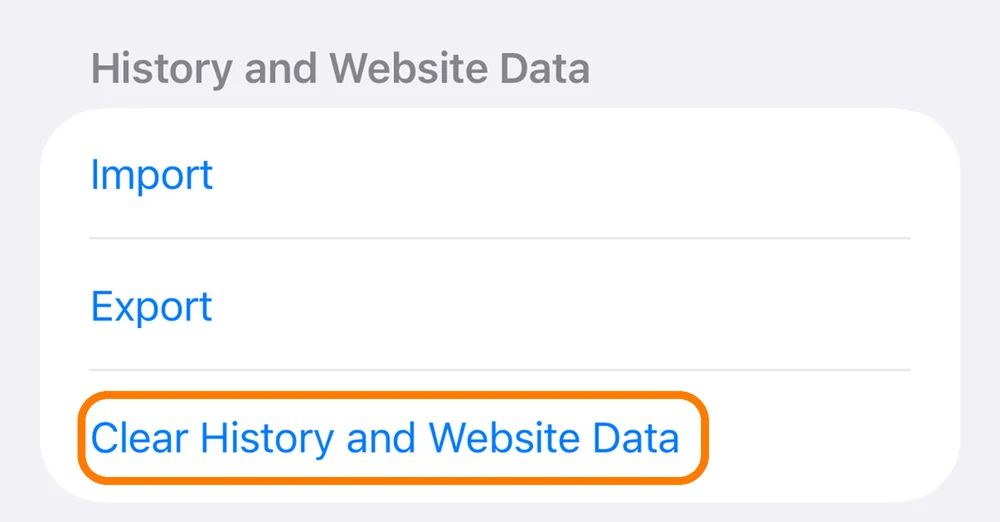
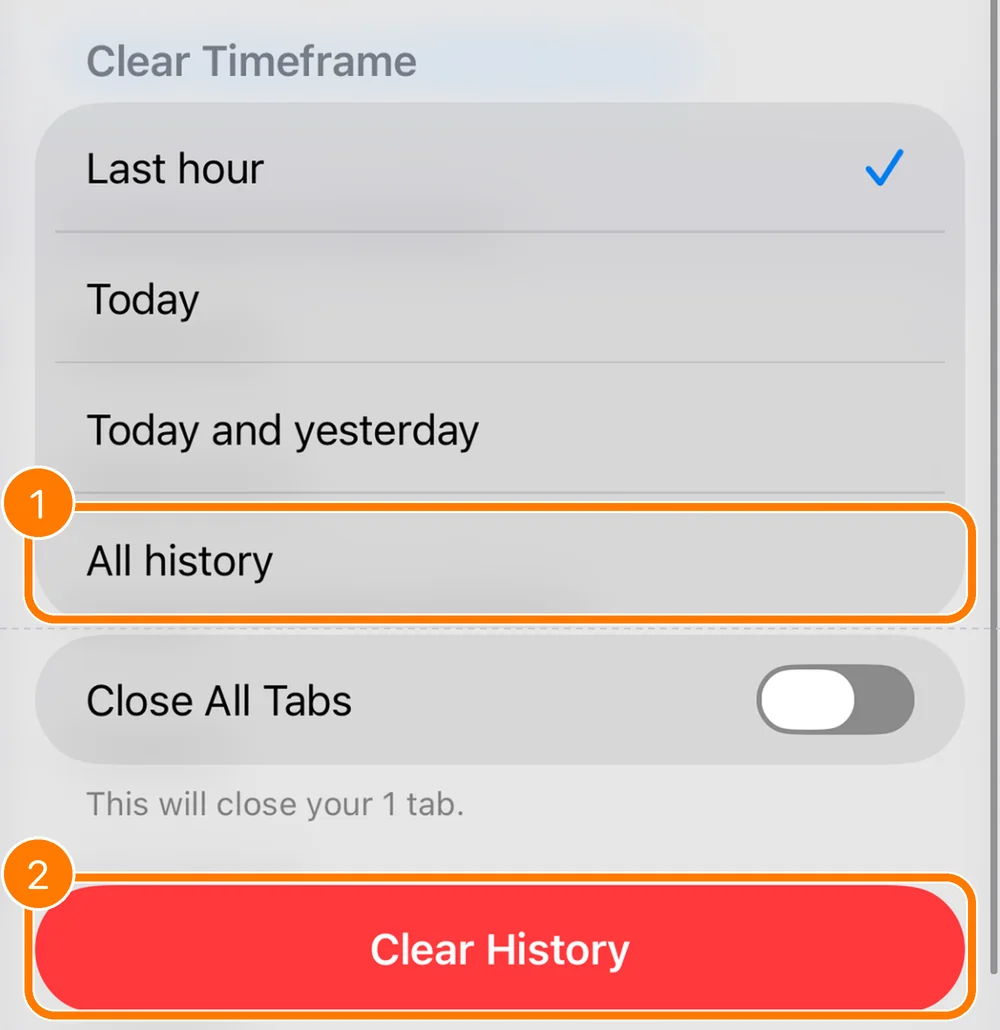
- Under Clear Timeframe, choose how far back to clear: Last hour (selected by default), Today, Today and yesterday or All history.
- Turn on Close All Tabs if you also want to close your open tabs. Leave it off to keep them.
- Tap Clear History.
What happens after you clear it
- You'll be signed out of most websites, because their cookies are removed. Make sure you know your passwords (or have them saved in the Passwords app) before you clear everything.
- Your browsing history for that timeframe is gone.
See how much each website stores
To check whether it's worth it, go to Settings → Apps → Safari → Advanced → Website Data. The top line shows the total website data Safari is storing, and there's an Edit button at the top. It's usually small, but it can grow to hundreds of megabytes. Clearing Safari helps a misbehaving browser more often than a full iPhone.
How to clear the cache of other apps
For apps other than Safari, you have two options:
- Look in the app's own settings. Some apps have a "clear cache" or "storage" option. Streaming apps let you delete downloaded episodes and songs, and in WhatsApp you can go to Settings → Storage and Data → Manage Storage inside the app.
- Delete and reinstall the app. This clears its cache completely, but you'll lose anything the app hasn't backed up, so only do this with apps you're sure about.
Offloading an app (in Settings → General → iPhone Storage) frees the space the app itself takes, but keeps its documents and data, so it doesn't clear a cache.
The temporary files iOS keeps for itself show up as System Data. You can't clear those directly, but restarting your iPhone clears many of them, and our guide to iPhone System Data explains what else makes it shrink.
If you're clearing cache to free up space
Caches are rarely what fills up an iPhone. Photos and videos usually are. Check Settings → General → iPhone Storage first, and if Photos is at the top, that's where the real space is.
That's where Photo Cleaner+, our app, helps: it finds duplicate and similar photos and large videos, and you check everything before anything is deleted. The app is free to download; some features need Premium. For every other fix, see our complete guide to freeing up iPhone storage.
Frequently asked questions
Does clearing the cache delete my photos or messages?
No. Clearing Safari's history and website data only affects Safari. Your photos, messages and other apps aren't touched.
Will clearing Safari's cache sign me out of websites?
Yes, for most websites, because their cookies are removed. You'll need to sign in again.
How often should I clear the cache?
Only when you have a reason: a site that won't load properly, privacy, or to check whether it frees up space. iOS manages caches itself the rest of the time.
Will clearing the cache speed up my iPhone?
Not in general. It can fix a website that loads wrongly or shows old content, but it won't make the rest of your iPhone faster.
Keep reading
 Storage
What Is "System Data" on iPhone, and How Can You Shrink It?
System Data can quietly grow to 20 GB or more. Here's what's inside it, why no app can delete it, and seven things that actually make it smaller.
Read guide → Complete guide
How to Free Up Storage on iPhone: 11 Ways That Actually Work
iPhone storage full? Find out what's really using the space, then work through 11 proven fixes for photos, videos, apps, messages and System Data.
Read guide →
See how much space you can free up
Photo Cleaner+ scans your photo library on your iPhone and shows what's taking up space. Free to download.