How to Free Up Storage on iPhone: 11 Ways That Actually Work
“iPhone Storage Almost Full.” Usually it shows up right when you want to take a photo, install an update or download something for a flight. The good news is that most iPhones have plenty of space to win back, and you don't need to delete anything you care about.
This guide starts by finding out what's actually filling your iPhone, then goes through the fixes from biggest win to smallest. Everything here uses settings that are built into iOS. Where an app can save you time, we say so, and we're just as clear about the things no app can clean.
- Open Settings → General → iPhone Storage to see what's using the space.
- Start with photos and videos: remove duplicates, old screenshots and large videos, then empty Recently Deleted.
- Offload apps you don't use and delete downloads inside streaming apps.
- Remove large attachments in Messages and stop keeping messages forever.
- Restart your iPhone so the system can shrink System Data.
Step 1: See what's actually using your storage
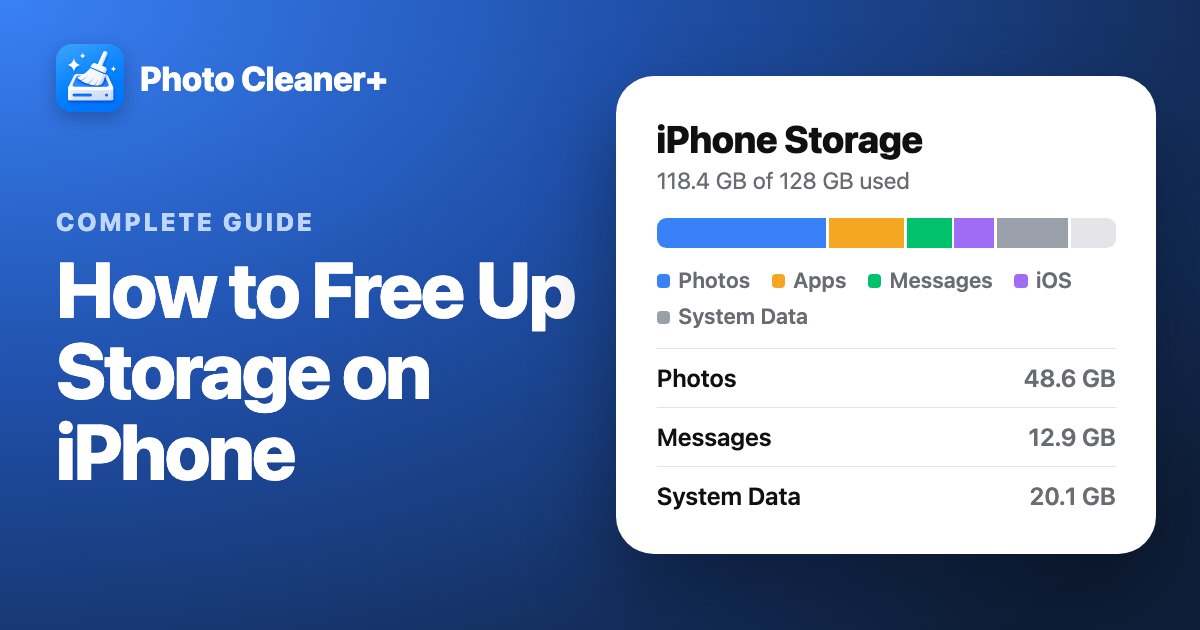
Before you delete anything, find out where the space went. Open Settings → General → iPhone Storage. The coloured bar at the top can take a minute to load. It splits your storage into categories such as Apps, Photos, Media, Messages, iOS and System Data.
Below the bar you'll see:
- Recommendations, such as offloading unused apps or reviewing large attachments. Some of these can be done with one tap.
- Every app, sorted by size. Tap an app to see two numbers: App Size (the app itself) and Documents & Data (everything it has saved, like downloads, caches and chats).
Photos and videos: usually the biggest win
Photos and videos quietly add up. A single minute of 4K video at 60 fps takes about 440 MB, so a handful of long videos can use more space than thousands of photos. These six steps usually free up the most space.
1. Delete duplicate photos
Saved images from chats, imports and edits often leave you with two or three copies of the same photo. Since iOS 16, the Photos app finds exact duplicates for you in a Duplicates album and can merge them in one tap. Our step-by-step guide shows where to find it and what merging does: how to delete duplicate photos on iPhone.
2. Clear out similar shots and bursts
Five nearly identical photos of the same sunset aren't duplicates, so the Photos app won't flag them. Go through your recent albums and keep only the best shot of each moment. If you take a lot of photos, an app that groups look-alike shots and suggests the best one makes this much faster.
3. Delete old screenshots
Screenshots are small one by one, but most of us have hundreds we'll never look at again. In Photos, find the Screenshots album under Media Types, tap Select, and drag your finger across the grid to select many at once. Then tap the bin icon. Our guide on deleting multiple photos at once shows how.
4. Find and shrink large videos
Videos are usually the largest files on your iPhone, but the Photos app can't sort them by size. Open the Videos album under Media Types and start with the longest ones (the length is shown on each thumbnail). Swipe up on a video, or tap the ⓘ button, to see its file size.
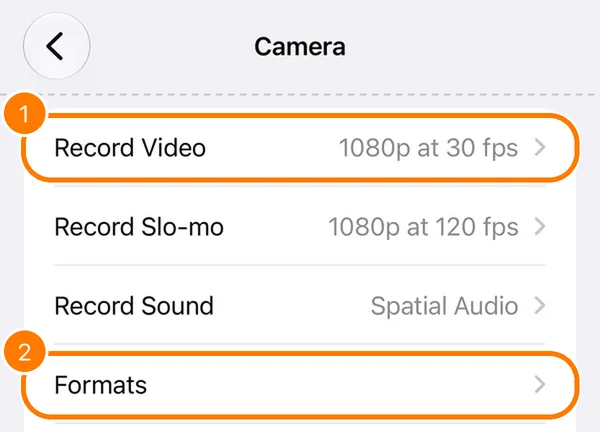
For videos you want to keep but don't need in full quality, compressing them can save a lot of space. You can also record future videos in a smaller format: go to Settings → Camera → Record Video and choose 1080p at 30 fps for everyday clips.
5. Empty “Recently Deleted”
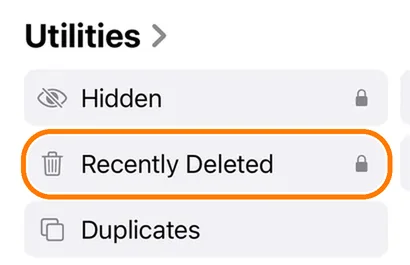
This is the step most people miss. When you delete a photo or video, it moves to the Recently Deleted album and stays there for about 30 days. Until then, it still takes up space.
- In Photos, scroll to Utilities (on the latest iOS it's in the Collections tab) and tap Recently Deleted. You'll need Face ID, Touch ID or your passcode.
- Tap Select, then Delete All.
6. Let iCloud keep the full-size originals
If you use iCloud Photos, turn on Settings → Photos → Optimize iPhone Storage. On some iOS versions you'll find it under Settings → [your name] → iCloud → Photos. Your iPhone then keeps smaller versions of your photos and videos, and the full-size originals stay in iCloud. It only starts replacing originals when your iPhone runs low on space.
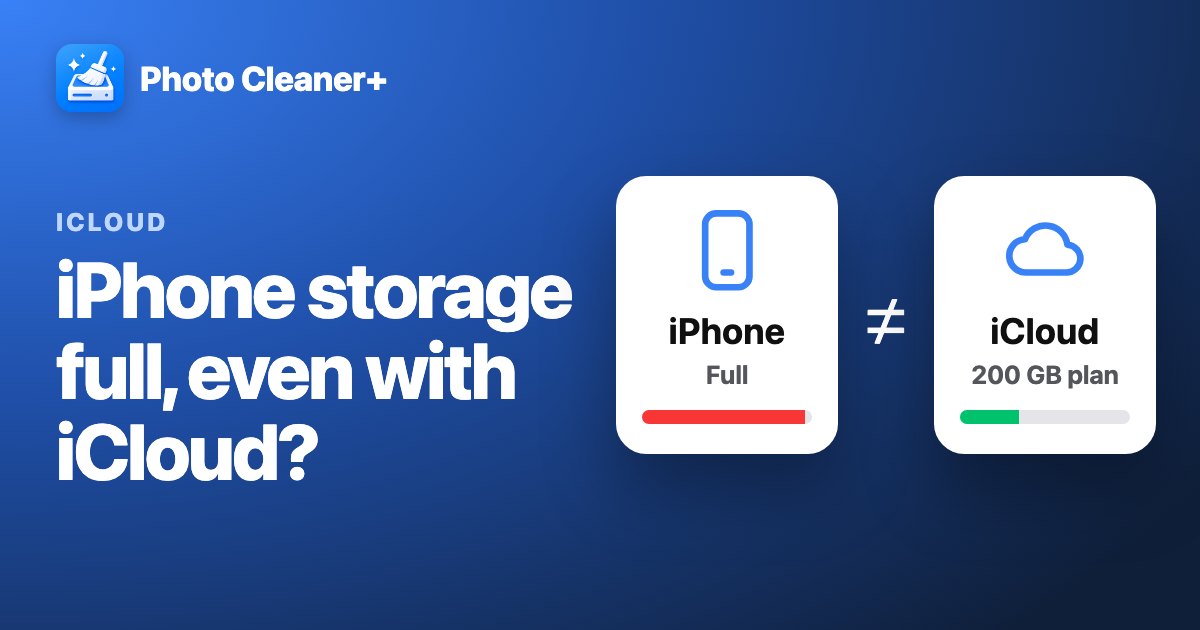
Paying for iCloud doesn't free up space on its own, which surprises a lot of people. Read why your iPhone storage is full when you have iCloud for the full explanation.
Apps: offload what you don't use
7. Offload apps you rarely open
Offloading removes an app but keeps its documents and data. The icon stays on your Home Screen, and when you tap it, the app reinstalls with everything just as you left it. That makes it a safe way to free up space from apps you only use now and then.
- One app: in Settings → General → iPhone Storage, tap the app and choose Offload App.
- Automatically: turn on Settings → Apps → App Store → Offload Unused Apps. On iOS 17 and earlier, it's under Settings → App Store.
8. Delete downloads inside apps
If an app's Documents & Data is much bigger than the app itself, it's storing downloads or a cache. Streaming apps like Netflix, Spotify, Apple Music and Podcasts keep downloaded episodes and songs, and you can remove them from inside each app. WhatsApp has its own storage manager under Settings → Storage and Data → Manage Storage, which sorts chats by size.
Deleting and reinstalling an app also clears its cache, but you'll lose anything the app hasn't backed up, so only do this with apps you're sure about.
Messages: old attachments add up
9. Remove large attachments and stop keeping messages forever
Years of photos, videos and voice notes in your chats can take up gigabytes. In Settings → General → iPhone Storage → Messages, you can review photos, videos and other attachments sorted by size. Swipe left on an item, or tap Edit, to delete it.
To stop old messages piling up, go to Settings → Apps → Messages → Keep Messages (on iOS 17 and earlier: Settings → Messages) and choose 1 Year or 30 Days.
Safari and other caches
10. Clear Safari's website data
Safari stores website data so pages load faster. It's usually small, but it can grow to hundreds of megabytes. Go to Settings → Apps → Safari → Clear History and Website Data. You'll be signed out of most websites afterwards. Our guide on clearing the cache on iPhone shows each step, and what works for other apps.
System Data: what you can and can't do
System Data (called “Other” on older iOS versions) is the grey part of the storage bar. It holds caches, logs, temporary files and other things iOS manages itself. Its size goes up and down, and it can sometimes grow to 20 GB or more.
Here's the honest part: no app can clean System Data. iOS doesn't let apps reach into the system or into other apps' storage, whatever some cleaner apps claim. But you can help iOS clean up after itself.
11. Restart, update and give it time
- Restart your iPhone. This clears many temporary files, and it's the simplest fix when System Data has suddenly grown.
- Install the latest iOS update in Settings → General → Software Update. Updates often fix storage bugs.
- Leave it overnight on Wi-Fi and charging. iOS does its clean-up and re-indexing while your phone is idle.
If System Data stays huge for weeks, the last resort is to back up your iPhone, erase it, and restore from the backup. It's a big step, so try everything above first. Our guide to System Data goes into more detail.
How to keep your iPhone from filling up again
- Keep Settings → Camera → Formats on High Efficiency. Photos and videos take up much less space than with Most Compatible.
- Only record 4K when you really need it.
- Turn on Optimize iPhone Storage if you use iCloud Photos.
- Do a five-minute clean-up once a month: screenshots, duplicates, then Recently Deleted.
- When you buy your next iPhone, choose more storage if you keep filling up the one you have.
Frequently asked questions
Why is my iPhone storage still full after deleting photos?
Deleted photos stay in the Recently Deleted album for about 30 days and still take up space until you empty it. The storage bar in Settings can also take a while to update. Empty Recently Deleted, then restart your iPhone and check again. Here are all six reasons this happens.
Does deleting photos on my iPhone delete them from iCloud?
If iCloud Photos is turned on, yes. Your iPhone and iCloud share one library, so deleting a photo on your iPhone deletes it everywhere. To free up space but keep your photos, turn on Optimize iPhone Storage instead. Here's how that works.
Will buying more iCloud storage free up space on my iPhone?
Not by itself. iCloud storage and iPhone storage are separate. Extra iCloud space only helps if you use iCloud Photos with Optimize iPhone Storage turned on, and then only for photos and videos.
Can a cleaner app clear System Data or other apps' caches?
No. iOS doesn't allow any app to clean System Data or other apps' storage. Cleaner apps can help with what Apple does allow: your photos, videos and contacts, which is usually where most of the space you can win back is.
How much free space should I keep on my iPhone?
Apple doesn't give an exact number, but we recommend keeping at least 5 to 10 GB free. iOS updates need several gigabytes to install, and a nearly full iPhone can feel slower and may stop recording video.
Keep reading
 iCloud
Why Is My iPhone Storage Full When I Have iCloud?
Paying for iCloud doesn't free up space on your iPhone by itself. Here's why, how to make iCloud actually save space, and what else is filling your phone.
Read guide → Photos
How to Delete Duplicate Photos on iPhone (Free, Step by Step)
Your iPhone can find and merge duplicate photos for free. Where to find the Duplicates album, what Merge does, and what to do about similar shots.
Read guide → Videos
How to Compress Videos on iPhone (and Free Up Space)
Videos are the biggest files on your iPhone. Make them smaller: record in a lighter format, trim, export at lower resolution or compress in one tap.
Read guide →
See how much space you can free up
Photo Cleaner+ scans your photo library on your iPhone and shows what's taking up space. Free to download.