What Is "System Data" on iPhone, and How Can You Shrink It?
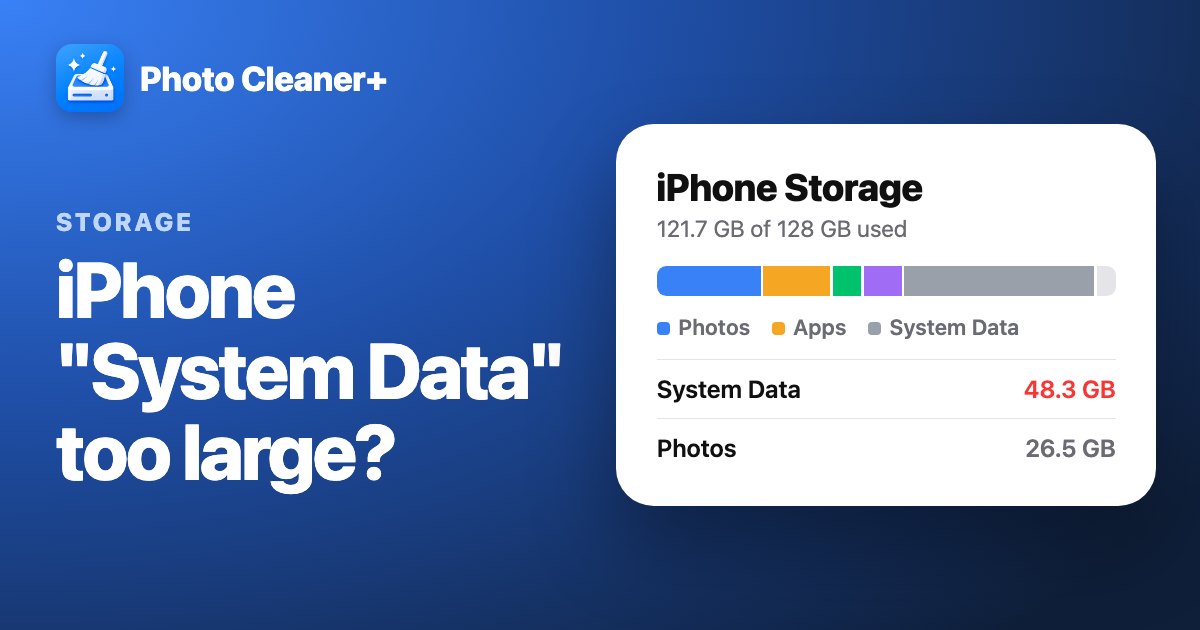
You open Settings → General → iPhone Storage, and next to your photos and apps there's a big grey block called System Data. Sometimes it's a few gigabytes. Sometimes it's 30 GB, and you have no idea what it is or how to get rid of it.
Here's what System Data actually is, why it grows, and what you can do about it. We'll also be honest about one thing up front: no app can delete it for you, ours included.
System Data is space iOS uses for caches, logs, temporary files and other things it manages itself. You can't delete it directly, but you can make it shrink: restart your iPhone, install the latest iOS update, clear Safari's website data, clear big app caches, and leave your iPhone charging overnight. If it stays huge for weeks, backing up and restoring your iPhone is the last resort.
What is System Data?
System Data (called “Other” on older versions of iOS) is everything on your iPhone that doesn't fit into the named categories like Apps, Photos or Messages. It includes things like:
- Caches: copies of music, video, web pages and images that apps keep so they load faster,
- logs and temporary files that iOS and apps create while they run,
- leftover update files after an iOS update,
- and other resources the system needs, like voices for Siri and dictation.
Some System Data is normal and necessary. A few gigabytes is nothing to worry about. It becomes a problem when it keeps growing and your iPhone runs out of space.
Why does System Data get so big?
- Streaming. Music and video apps cache what you play. Watch a lot of shows and the cache grows.
- A recent iOS update. Update files can stay behind for a while after installing.
- Messages and browsing. Cached attachments, previews and website data add up.
- Not enough free space. When storage is almost full, iOS has less room to clean up and reorganise, so temporary files can pile up.
7 ways to shrink System Data
1. Restart your iPhone
The simplest fix is often the most effective. Restarting clears many temporary files. Turn your iPhone off, wait a few seconds and turn it back on, then check the storage screen again after a few minutes.
2. Install the latest iOS update
Go to Settings → General → Software Update. Updates regularly fix bugs where System Data grows too much, and installing one can also clear out the leftovers of an earlier update.
3. Clear Safari's website data
Go to Settings → Apps → Safari → Clear History and Website Data. This removes cached web pages and site data. You'll be signed out of most websites.
4. Clear the cache in big apps
Some apps have their own “clear cache” or “storage” option in their settings. Streaming, social media and chat apps are the usual suspects. If an app has no such option, offloading or deleting and reinstalling it clears its cache. Only do this with apps where your data is backed up or synced to an account.
5. Tidy up Messages
In Settings → General → iPhone Storage → Messages, review large attachments and delete what you don't need. You can also set Settings → Apps → Messages → Keep Messages to 1 Year instead of Forever.
6. Leave it charging overnight
iOS does a lot of its clean-up while your iPhone is locked, charging and on Wi-Fi. If you've just freed up space, give it a night before you judge the result.
7. Last resort: back up and restore
If System Data stays enormous for weeks and nothing above helps, you can back up your iPhone, erase it in Settings → General → Transfer or Reset iPhone, and restore from the backup. This usually brings System Data back to normal, but it takes time. Make sure your backup is complete before you erase anything.
What you can clean: photos and videos
While System Data is mostly out of your hands, photos and videos are fully in your control, and they're usually the biggest category on the storage screen. Clearing duplicates, old screenshots and large videos often frees up more space than System Data takes. Our complete guide to freeing up iPhone storage walks through every step.
Frequently asked questions
Can I delete System Data on my iPhone?
Not directly. There's no button to delete it, and no app can do it for you. You can make it shrink by restarting, updating iOS, clearing caches and giving your iPhone time to clean up.
How big should System Data be?
It varies from iPhone to iPhone and changes from day to day. A few gigabytes is normal. If it's much larger and keeps growing after a restart, work through the steps above.
Why did System Data grow after an iOS update?
Updates leave temporary files behind. They're usually cleaned up within a day or two, especially if your iPhone is charging overnight. A restart can speed this up.
Can Photo Cleaner+ clean System Data?
No. No app can. Photo Cleaner+ focuses on what you can control: duplicate and similar photos, screenshots, large videos and duplicate contacts.
Keep reading
 Complete guide
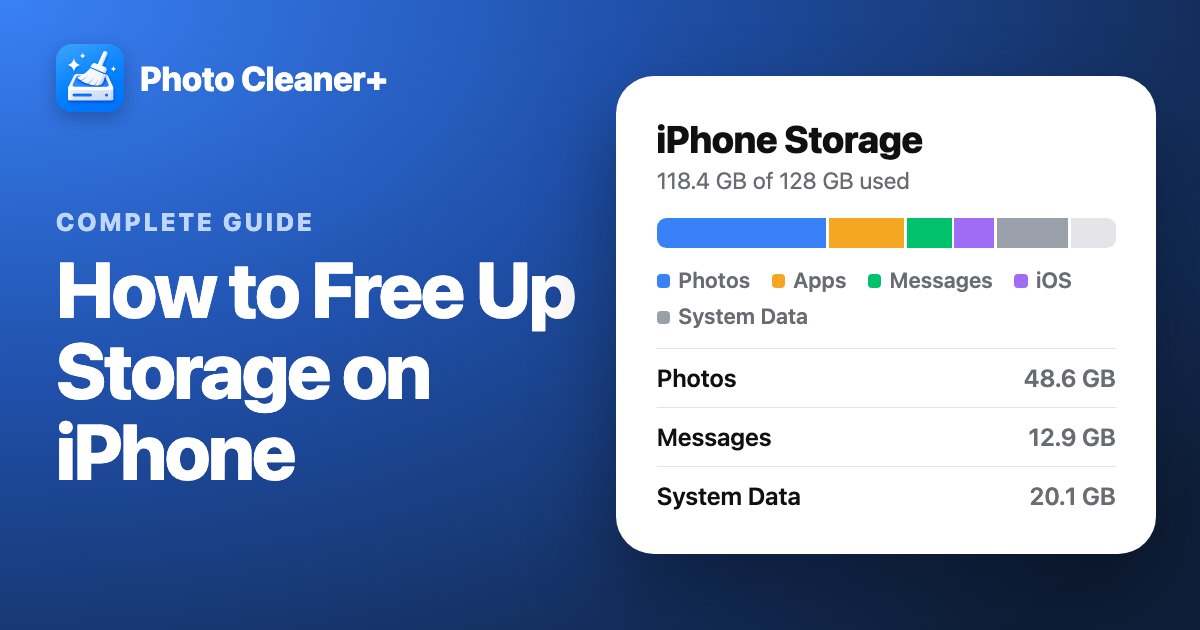
How to Free Up Storage on iPhone: 11 Ways That Actually Work
iPhone storage full? Find out what's really using the space, then work through 11 proven fixes for photos, videos, apps, messages and System Data.
Read guide →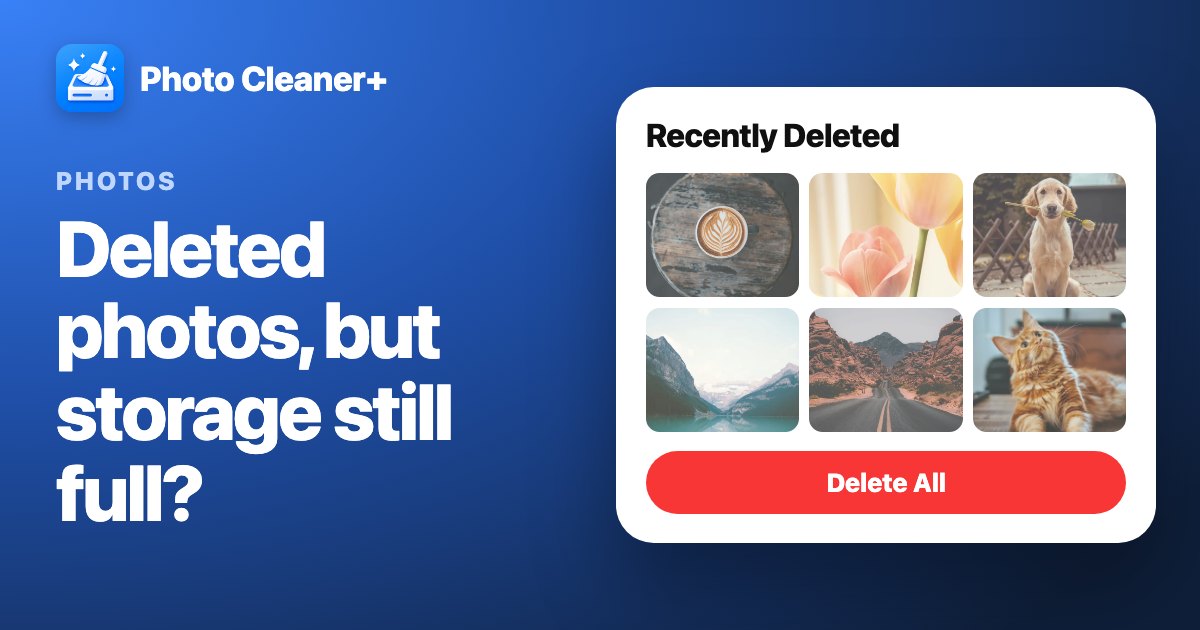 Photos
 Still Taking Up Space After Deleting? 6 Reasons and Fixes
Deleted photos but iPhone storage didn't change? The six usual reasons, from Recently Deleted to hidden photos and chat apps, and how to fix each.
Read guide →
See how much space you can free up
Photo Cleaner+ scans your photo library on your iPhone and shows what's taking up space. Free to download.