How to Compress Videos on iPhone (and Free Up Space)
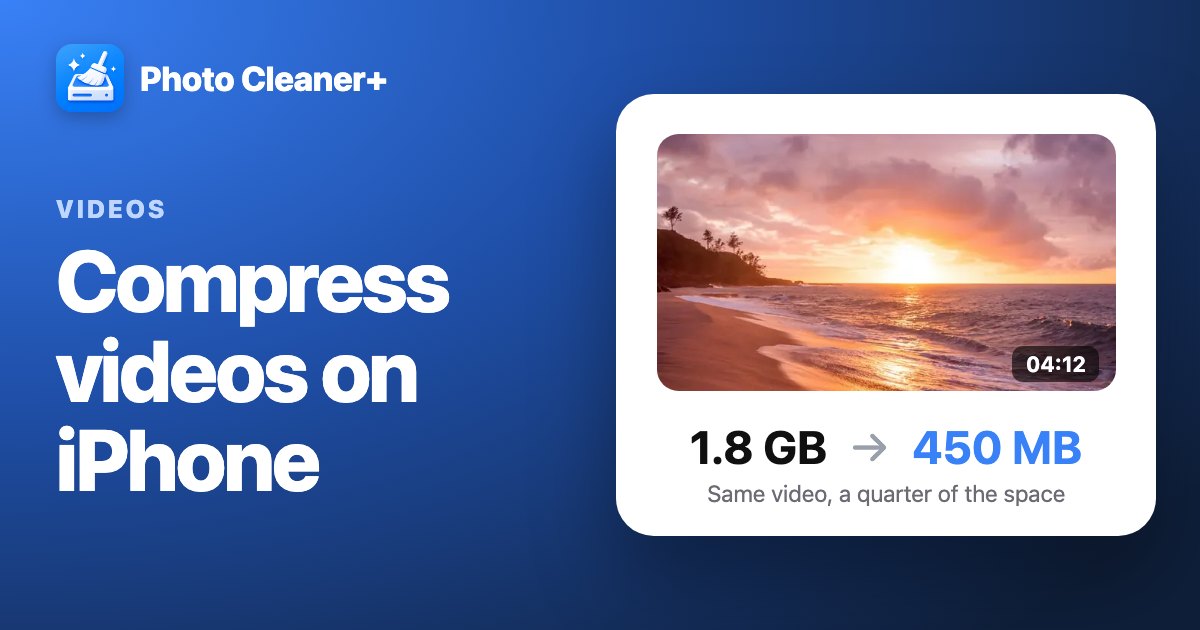
If your iPhone is full, your videos are the first place to look. Photos are a few megabytes each, but one minute of 4K video at 60 fps takes around 440 MB. A few birthday parties and holidays later, videos can easily take up tens of gigabytes.
The Photos app doesn't have a “compress” button, but there are still several ways to make videos smaller. Here they are, from the free built-in options to the quickest one.
- For new videos: go to Settings → Camera → Record Video and choose 1080p at 30 fps, and set Formats to High Efficiency.
- For existing videos: trim the parts you don't need, export a smaller copy with an editing app like iMovie, or use a compression app like Photo Cleaner+.
How much space do videos take?
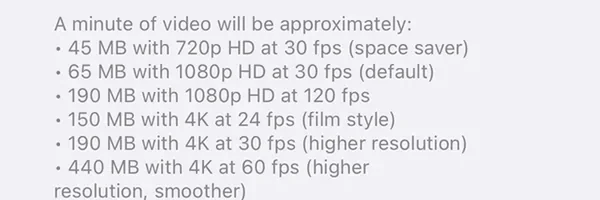
It depends on the resolution and frame rate you record at. These are the approximate sizes your iPhone shows in the Camera settings for one minute of video:
| Recording setting | About per minute |
|---|---|
| 720p HD at 30 fps | 45 MB |
| 1080p HD at 30 fps (the default) | 65 MB |
| 4K at 30 fps | 190 MB |
| 4K at 60 fps | 440 MB |
| 4K at 120 fps | 800 MB |
So a 10-minute 4K video at 60 fps is around 4.4 GB, while the same video in 1080p would be about 650 MB.
1. Record future videos in a smaller format
This doesn't change videos you already have, but it stops the problem from coming back.
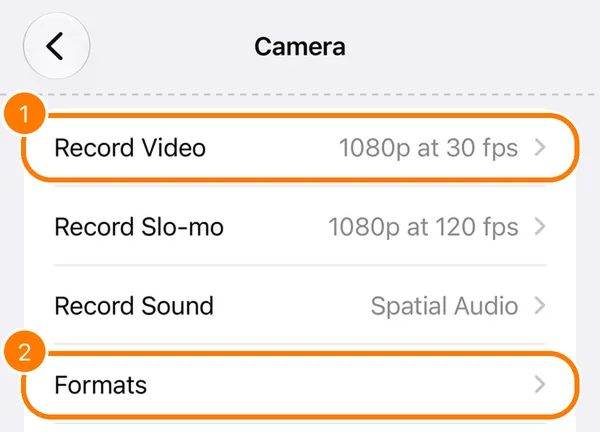
- Open Settings → Camera → Record Video.
- Choose 1080p HD at 30 fps for everyday videos. Switch back to 4K for moments where quality really matters.
- Go back and open Formats. Make sure High Efficiency is selected.
2. Trim the parts you don't need
Many videos have a long boring start or end. Cutting those off makes the file smaller, without touching the quality of the part you keep.
- Open the video in Photos and tap Edit.
- Drag the handles at the start and end of the timeline to the part you want to keep.
- Tap Done and choose to save the video or save it as a new clip.
If you save it as a new clip, delete the original afterwards, and remember to empty Recently Deleted. Otherwise you'll have used more space, not less.
3. Export a smaller copy with iMovie
Apple's free iMovie app can export a video at a lower resolution. Create a movie with your video, tap the Share button, and choose a lower resolution in the export options before you save it. Then check the new copy and delete the original if you're happy with it.
This works well, but it takes several steps per video, so it's best for a handful of large videos.
4. Compress videos in one place with Photo Cleaner+
If you have lots of videos, doing them one by one gets tedious. Photo Cleaner+, our app, has a Compress tab that lists your videos sorted by size, so the biggest ones are at the top, and shows how much space you can save.
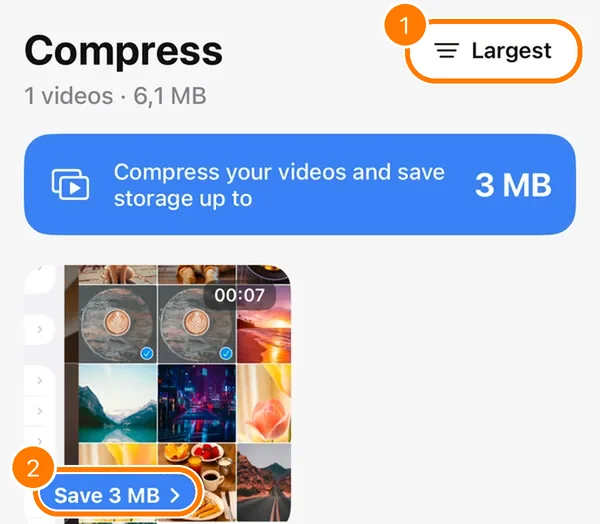
Tap a video, choose how much to compress it, from light to strong, and the app shows the size before and after so you know what you'll get.
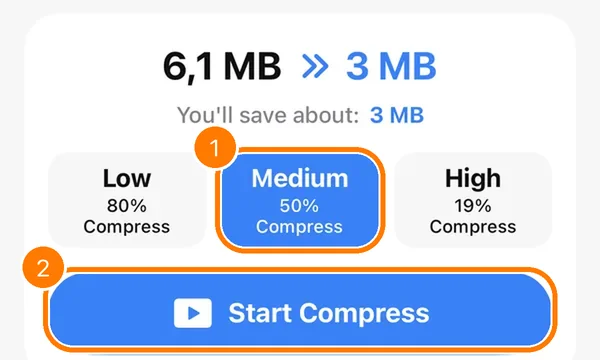
Everything happens on your iPhone, and your videos are never uploaded. The app is free to download; some features need Premium.
Videos are only one part of a full iPhone. For everything else, see our complete guide to freeing up iPhone storage.
Frequently asked questions
Can I compress a video on iPhone without an app?
Partly. The Photos app can't compress a video, but you can trim it to make it shorter, and you can record future videos in a smaller format in Settings → Camera.
Does compressing a video reduce its quality?
Yes, a little. Light compression is hard to notice on a phone screen. Strong compression makes the video noticeably softer, especially on a big screen.
Is 4K or 1080p better for everyday videos?
For most everyday videos, 1080p looks great on a phone and takes a fraction of the space. Use 4K when you plan to watch on a large screen or edit the video later.
Why is my video so large to send?
Videos recorded in 4K or at 60 fps are big files. Trimming the video or compressing a copy makes it much easier to send by email or chat.
Keep reading
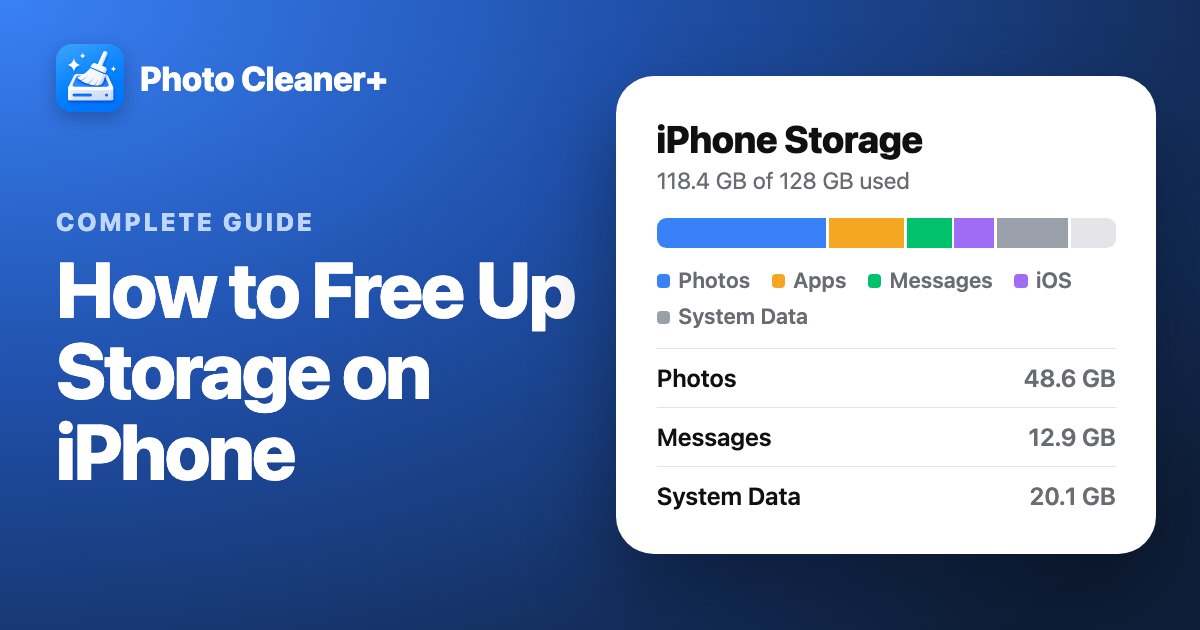 Complete guide
How to Free Up Storage on iPhone: 11 Ways That Actually Work
iPhone storage full? Find out what's really using the space, then work through 11 proven fixes for photos, videos, apps, messages and System Data.
Read guide →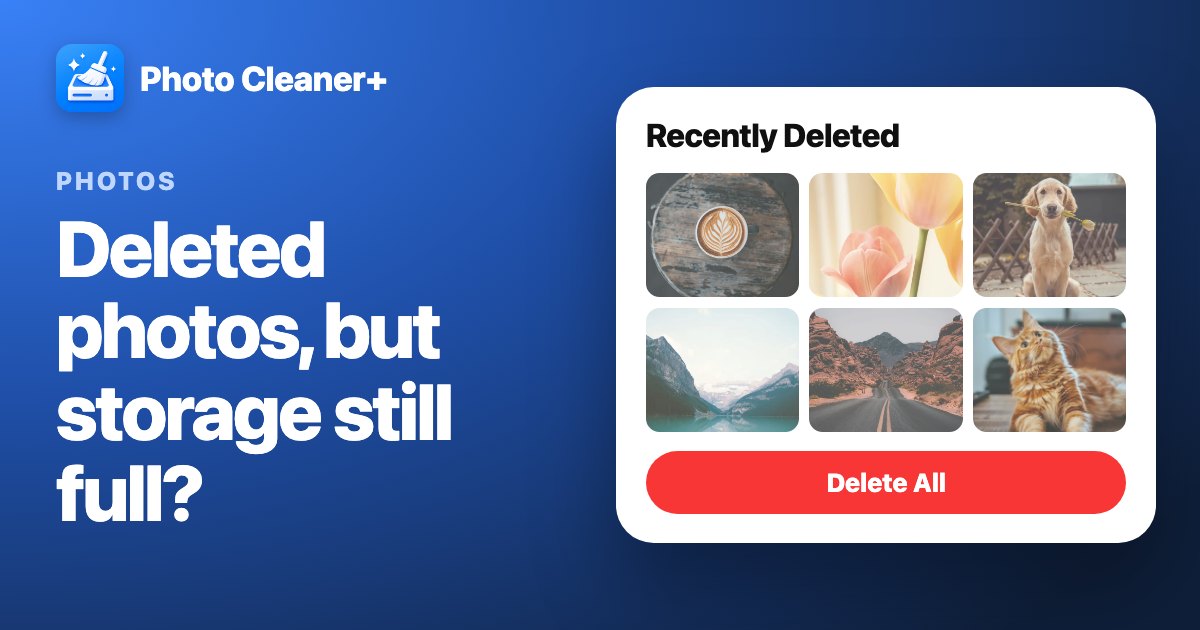 Photos
 Still Taking Up Space After Deleting? 6 Reasons and Fixes
Deleted photos but iPhone storage didn't change? The six usual reasons, from Recently Deleted to hidden photos and chat apps, and how to fix each.
Read guide →
See how much space you can free up
Photo Cleaner+ scans your photo library on your iPhone and shows what's taking up space. Free to download.