How to Delete Duplicate Photos on iPhone (Free, Step by Step)
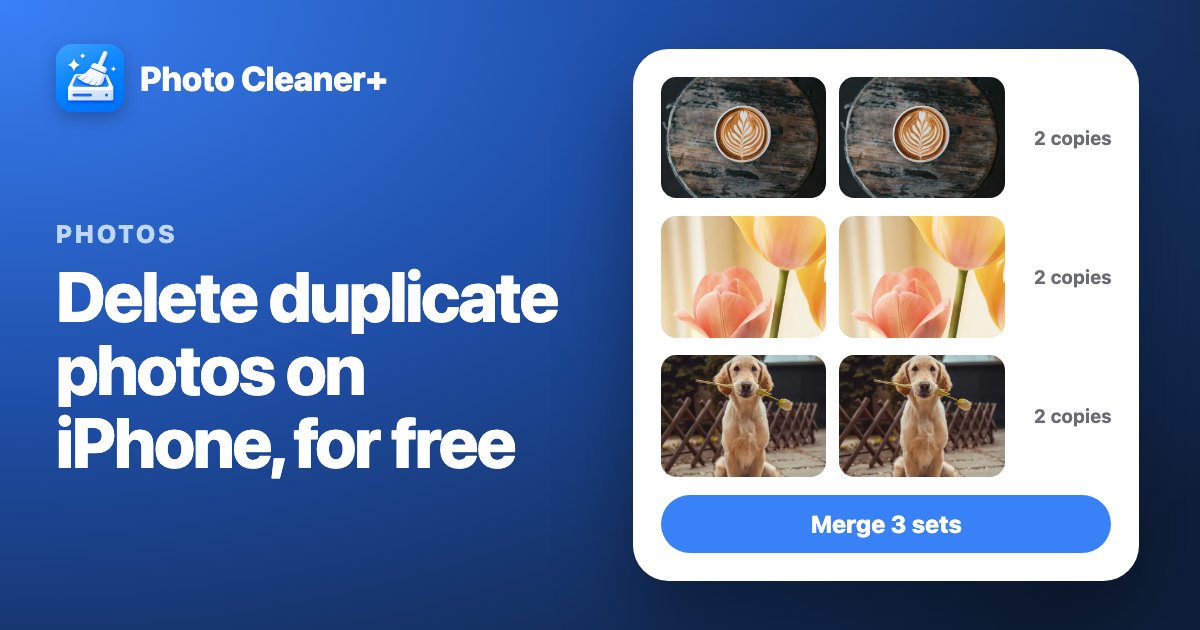
Duplicate photos sneak in from everywhere: pictures saved from WhatsApp more than once, photos imported from an old phone, AirDrops from friends who were at the same party. Each copy takes up space, and they make your library harder to scroll through.
You don't need an app to fix this. Since iOS 16, the Photos app finds duplicates for you and can merge them in a couple of taps. Here's exactly how, plus what to do about the similar shots it doesn't catch.
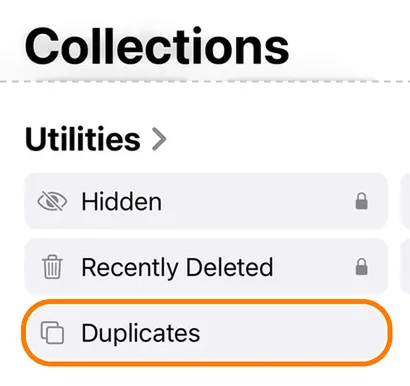
Open Photos, scroll down to Utilities and tap Duplicates. Tap Merge next to each set, or tap Select → Select All → Merge to do them all at once. Then empty Recently Deleted to actually get the space back.
What counts as a duplicate?
The Photos app looks for exact copies, and for photos that look identical but differ in resolution, file format or other details. A photo you saved twice from a chat, or a full-size original next to a smaller copy someone sent you, will both show up.
What it won't find are similar photos: the eight almost-identical shots you took of the same group, or a burst of your dog jumping. Those are separate photos, so they need a different approach, which is covered further down.
How to find and merge duplicates in the Photos app
- Open the Photos app.
- Find the Utilities section. Where it is depends on your iOS version:
- On the latest iOS: tap Collections and scroll down to Utilities.
- On iOS 18: scroll down below your library until you see Utilities.
- On iOS 16 and 17: tap the Albums tab and scroll to the bottom.
- Tap Duplicates. You'll see each set of duplicates side by side, with their file sizes and dates.
- Tap Merge next to a set, then confirm.
- To merge everything in one go, tap Select in the top corner, then Select All, then Merge.
What “Merge” actually does
Merging keeps one photo from each set: the one with the highest quality. Captions, keywords and favourites from the copies are combined into it, so you don't lose any of that. The other copies move to the Recently Deleted album.
If you use iCloud Photos, the merge happens on all your devices, because they all share the same library.
Empty “Recently Deleted” to get the space back
Merged copies stay in Recently Deleted for about 30 days, and until then they still take up space. That's useful if you change your mind, but it means your storage won't change straight away.
- In Photos, go to Utilities → Recently Deleted and unlock it with Face ID, Touch ID or your passcode.
- Check there's nothing you want to keep, then tap Select → Delete All.
Duplicates album empty or missing?
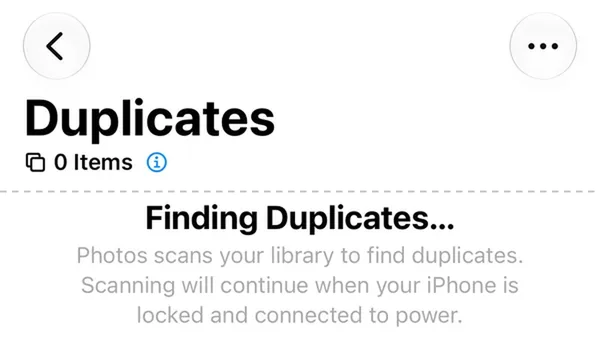
If the album says Finding Duplicates…, your iPhone hasn't finished checking your library yet. Photos only does this while your iPhone is locked and connected to power, so a big library can take a few nights. Leave it charging overnight and look again.
Other reasons you might not see any duplicates:
- You don't have any. On older iOS versions, the album only appears once Photos has found at least one set.
- Your iPhone runs iOS 15 or older. Check in Settings → General → About. The Duplicates album needs iOS 16 or later.
What about similar photos?
Similar shots often take up more space than true duplicates, because we tend to take five or ten photos of the same moment. The Photos app doesn't group them, so you have two options:
- Do it by hand. Scroll through a recent album, open a group of near-identical shots, keep your favourite and delete the rest. It works, but it's slow if you have thousands of photos.
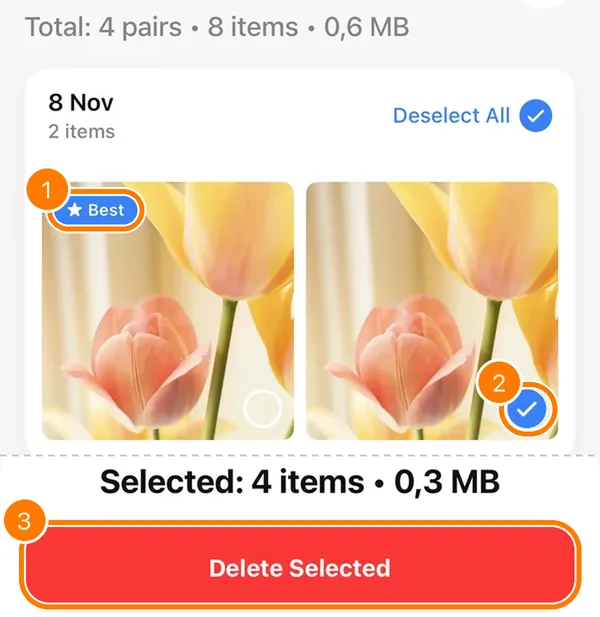
- Use an app that groups them for you. Photo Cleaner+, our app, puts look-alike photos into groups, suggests the best shot in each one and lets you remove the rest after you've checked them. It also finds exact duplicates, so you can do both in one place.
Do you need a duplicate photo app?
For exact duplicates, honestly, no. The built-in Duplicates album is free, safe and good at what it does. An app is worth it if you also want to:
- clear out similar shots and bursts quickly,
- find old screenshots, blurry photos and photos of receipts in one place,
- see your largest videos sorted by size, or compress them,
- know how much space you'll get back before you delete anything.
Whichever you use, choose an app that analyses photos on your iPhone rather than uploading them, and that asks before deleting anything.
Duplicates are just one part of the picture. For the full list of ways to win back space, see our complete guide to freeing up storage on iPhone.
Frequently asked questions
Is it safe to merge duplicate photos on iPhone?
Yes. Merging keeps the best-quality copy along with its details, and the removed copies stay in Recently Deleted for about 30 days. If something goes wrong, you can restore them from there.
Does merging duplicates delete them from iCloud?
If iCloud Photos is on, yes. Your iPhone and iCloud share one library, so the extra copies are removed from iCloud and your other devices as well. The photo you keep stays everywhere.
Can I undo a merge?
Yes, for about 30 days. Open Utilities → Recently Deleted, select the copies you want back and tap Recover.
Why do I still have duplicates after merging?
Photos you add later are checked over time, so new duplicates may appear in the album after a while. Photos that are only similar, not identical, never show up in the Duplicates album.
Why is my storage still full after deleting duplicates?
The removed copies are still in Recently Deleted. Empty that album, then give the storage bar in Settings a few minutes to update. If your iPhone is still full, check whether iCloud is set up to save space.
Keep reading
 Complete guide
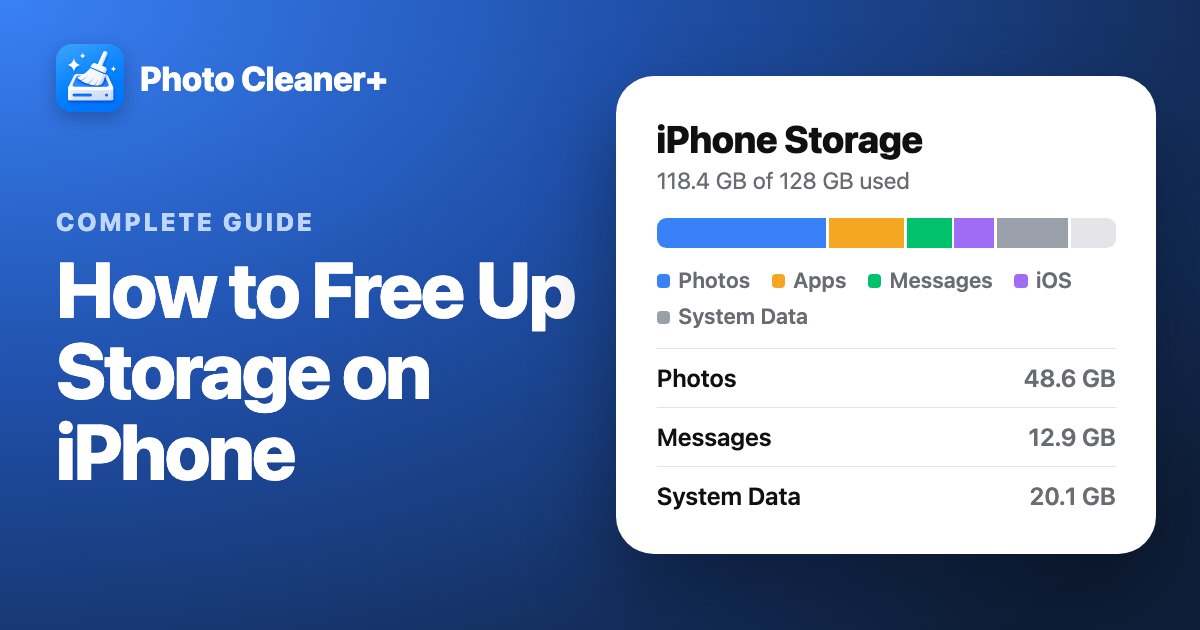
How to Free Up Storage on iPhone: 11 Ways That Actually Work
iPhone storage full? Find out what's really using the space, then work through 11 proven fixes for photos, videos, apps, messages and System Data.
Read guide →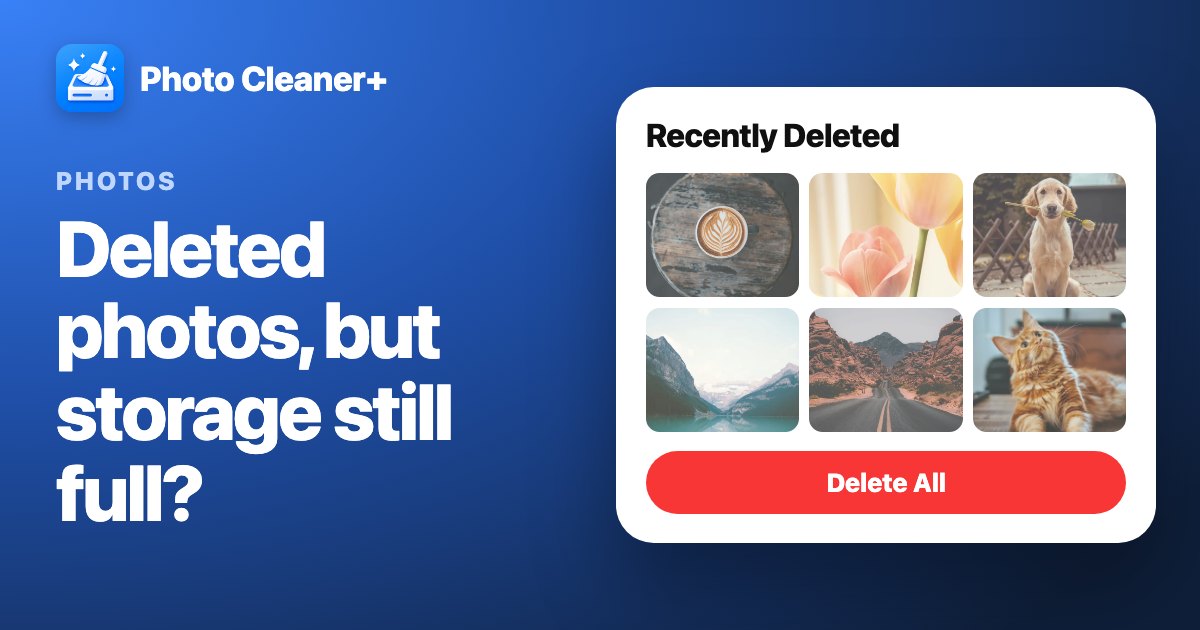 Photos
 Still Taking Up Space After Deleting? 6 Reasons and Fixes
Deleted photos but iPhone storage didn't change? The six usual reasons, from Recently Deleted to hidden photos and chat apps, and how to fix each.
Read guide →
See how much space you can free up
Photo Cleaner+ scans your photo library on your iPhone and shows what's taking up space. Free to download.