How to Delete Multiple Photos on iPhone at Once (the Fast Way)
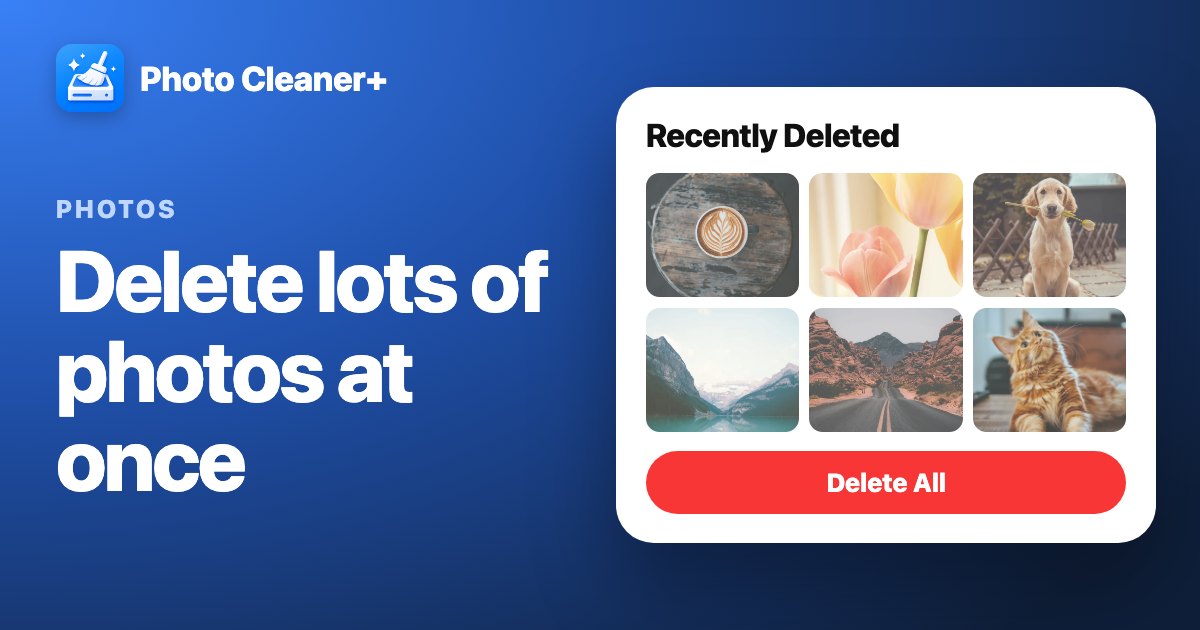
Deleting photos one at a time takes forever when you're cleaning up hundreds of screenshots, blurry shots and old memes. The Photos app has a much faster way that many people never discover: select a whole batch with one swipe of your finger.
Open Photos, tap Select, then drag your finger across a row of photos and down the screen to select many at once. Tap the trash button and confirm with Delete [number] Photos. Then empty Recently Deleted to free the space straight away.
How to select and delete many photos at once
- Open the Photos app on the Library tab.
- Tap Select at the top right.

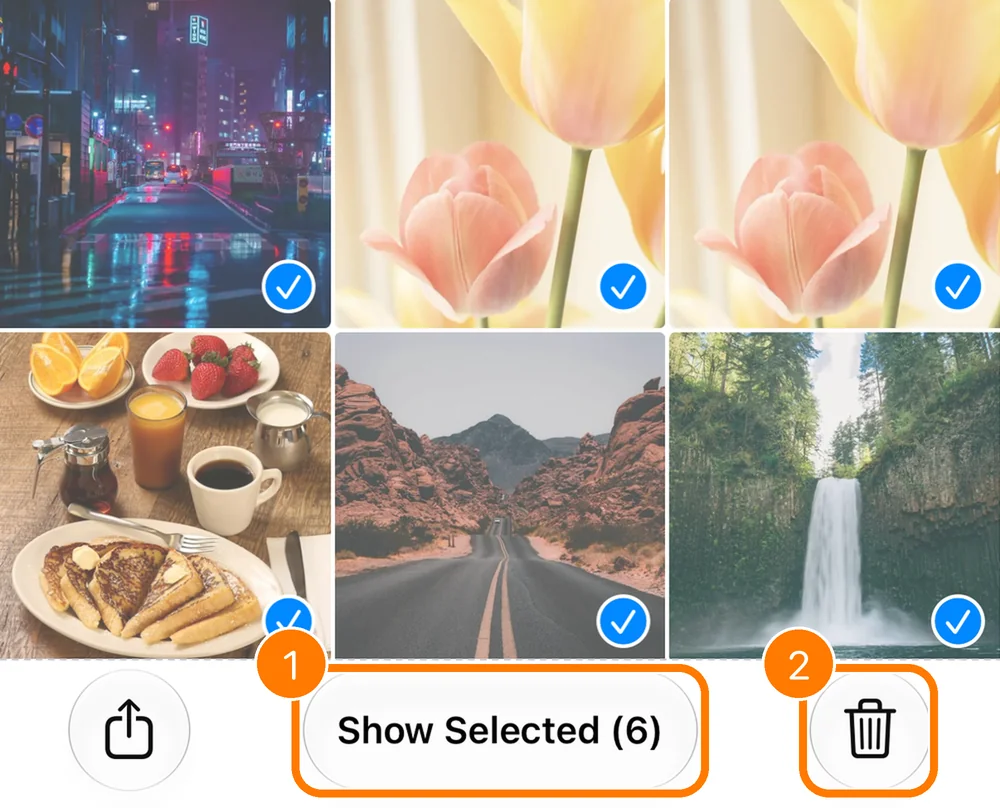
- Tap photos one by one to select them, or use the fast way: put your finger on a photo, slide it sideways across the row, then down the screen without lifting it. Every photo you pass over gets a tick.
- Check the count at the bottom: Show Selected tells you how many photos you've picked.
- Tap the trash button at the bottom right.
- Confirm with Delete [number] Photos.
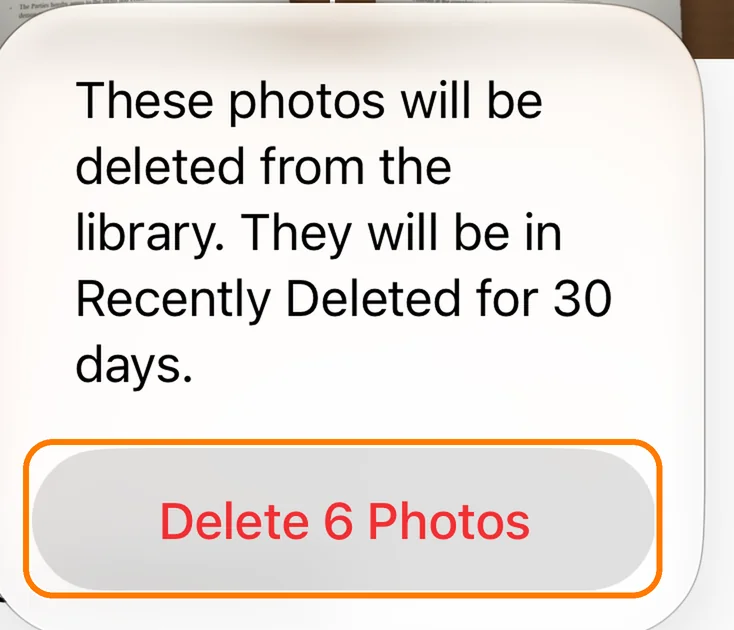
As the message says, the photos go to Recently Deleted and stay there for 30 days, in case you change your mind.
Get the space back: empty Recently Deleted
Until Recently Deleted is emptied, your iPhone still keeps those photos, so your storage doesn't change. To free the space now:
- In Photos, tap Collections and scroll down to Utilities.
- Tap Recently Deleted and unlock it with Face ID, Touch ID or your passcode.
- Tap Select, then Delete All, and confirm.
This can't be undone, so only do it once you're sure. If your storage still doesn't go down afterwards, see why photos keep taking up space after you delete them.
Tips for cleaning up faster
- Clear out screenshots in one go. In Photos, find the Screenshots album under Media Types, tap Select, and drag your finger across the grid in the same way.
- Work from the oldest photos. Old screenshots, photos of parking spots and pictures of receipts are usually the easiest to let go.
- Start with exact copies. The Photos app finds duplicates for you: see how to delete duplicate photos.
- Look at your videos too. One long video can take as much space as hundreds of photos, so deleting a few long videos can free more space than an hour of deleting photos. Compressing them is another option if you want to keep them.
Let an app find what to delete
Selecting is fast, but deciding which photos to delete still takes time. Photo Cleaner+, our app, groups look-alike photos and duplicates for you, suggests the best shot in each group and selects the rest, so you only have to check and tap Delete Selected. Nothing is deleted until you confirm. The app is free to download; some features need Premium.
Frequently asked questions
How do I select lots of photos quickly?
Tap Select, then drag your finger across the first row and down the screen to select many photos in one go.
Where do deleted photos go?
To the Recently Deleted album under Utilities, where they stay for 30 days before they're removed for good.
Why didn't my storage go down after deleting photos?
Because they're still in Recently Deleted. Empty that album to free the space now.
Can I get back photos I deleted by mistake?
Yes, within 30 days. Open Recently Deleted, select the photos and tap Recover.
Keep reading
 Photos
 Still Taking Up Space After Deleting? 6 Reasons and Fixes
Deleted photos but iPhone storage didn't change? The six usual reasons, from Recently Deleted to hidden photos and chat apps, and how to fix each.
Read guide → Photos
How to Delete Duplicate Photos on iPhone (Free, Step by Step)
Your iPhone can find and merge duplicate photos for free. Where to find the Duplicates album, what Merge does, and what to do about similar shots.
Read guide →
See how much space you can free up
Photo Cleaner+ scans your photo library on your iPhone and shows what's taking up space. Free to download.